Zoom
For Students, Faculty, Staff
Overview
Zoom is Fordham University's standard software application for online video and audio conferencing, collaboration, chat, and webinars across mobile devices, desktops, and telephones.
Getting Started
Access Zoom via Web Browser
- Go to http://fordham.zoom.us/ or fordham.edu portal > My Apps > Zoom
- Click the maroon Sign in button
- Log in with your Fordham credentials
Access Zoom via Desktop or Mobile Apps
- Download the Zoom desktop app for your device (Windows/Mac/Android/iOS)
- Follow installation process instructions
- Open the Zoom app
- Click SSO from the sign in options
- Log in with Fordham credentials
Keep Zoom desktop apps updated
To check for updates, log in to your desktop Zoom, click your photo in the upper right, and then select Check for updates.
.png)
If you need assistance setting up your Zoom account, please contact the IT Service Desk. If you have security concerns about Zoom, please contact the University Information Security Office.
Note: Fordham offers Zoom accounts to current Fordham University students, faculty, and staff only. If you are no longer affiliated with Fordham, your account will be converted to a basic Zoom account which allows the hosting of 40 min meetings.
Zoom Resources
-
- Schedule a meeting (video tutorial)
- Joining a meeting (video tutorial)
- Meeting controls (video tutorial)
- Recording a Zoom meeting (video tutorial)
- Sharing your screen and annotation (video tutorial)
- Fordham Zoom virtual backgrounds (video tutorial)
- Setting up breakout rooms (video tutorial)
- Use the Zoom tool in Blackboard to schedule Zoom meetings directly from your Bb course (instructions walk-though)
For more check out Zoom help pages (repository of help articles)
-
Host online events with up to 500 interactive video participants. To request a temporary subscription for a Zoom webinar, contact the IT Service Desk or log into fordham.edu > My Pages > Tech Help and submit a request for a Zoom webinar at least 5 business days prior to the event for set up. The temporary subscription will expire after your event has ended. Make sure you are familiar with the Zoom webinar features before starting your event. Compare Zoom meetings with Zoom webinars.
As an alternative, Google Meet can host up to 500 participants without requiring a license. Additionally, the event can be streamed to 100,00 viewers.
For additional information, visit Zoom webinar support.
-
Enable Live Transcriptions in Zoom (AI-based Closed Captioning)
The host must first enable their meeting's Auto-Transcription feature to make Zoom's native AI-based closed captioning available to participants.
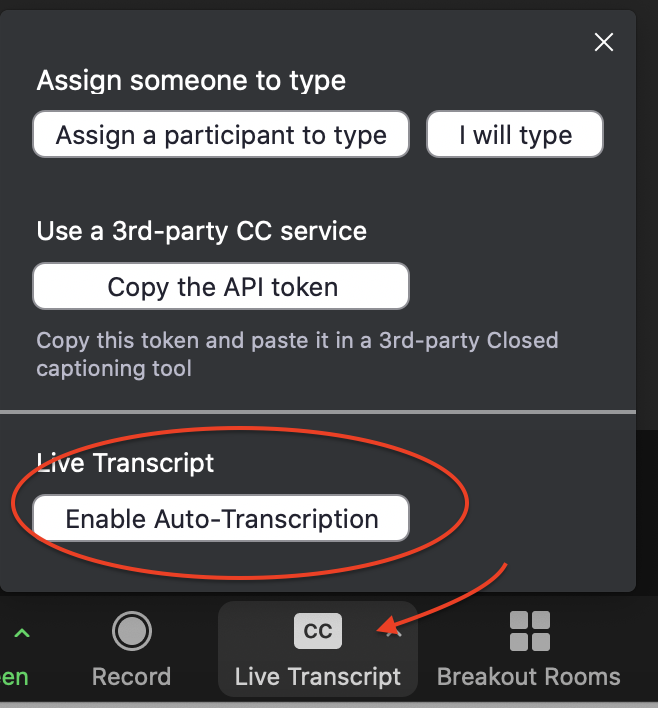
If you are the meeting host, click the CC Live Transcript icon at the bottom of the Zoom window and select Enable Auto-Transcription.
When meeting participants click the CC Live Transcript icon, closed captioning will appear on their screen.
-
Record your meetings to the cloud if you intend to share them with others. Meetings recorded to the cloud will produce an automatic transcript. The option to record to the cloud will appear when you initiate the recording. Zoom cloud recordings will be deleted from Zoom after 90 days. Cloud recordings are deleted after 30 days. Use Panopto to store, view, and share your recordings for an unlimited time.
Before posting your recording, it must be ADA compliant. Review the transcript for accuracy; this is the only way you can be sure it's ADA compliant. The transcript can be displayed within the video itself, similar to a closed captions display. If you plan to share your recording with others, please do not record it locally.
-
Check device compatibility with Zoom desktop apps: Zoom system requirements
-
The Zoom AI Companion works quietly in the background during your Zoom meetings. When turned on, it offers these features:
- Meeting summary: a written recap delivered to you after the meeting ends. Includes key topics, decisions, and action items.
- In-meeting questions: ask the AI anything about what’s been discussed so far. Only you see the answer.
- Smart recording: cloud recordings are automatically broken into chapters and highlights so you can find what you need fast.
- Live transcription: real-time captions during the meeting, available in multiple languages.