Multi-Factor Authentication
Overview
Multi-factor authentication (MFA) provides your Fordham account with an additional layer of security by requiring you to authenticate login requests to university systems. MFA is simple: When you log in with your password, you will receive an identity authentication request on a secondary device such as a smartphone, cell phone, tablet, computer, or landline to finish the login process. Fordham’s MFA service is provided by Duo Security, a trusted company used by many higher education institutions.
Verifying your identity using MFA reduces the risk associated with unauthorized access to your accounts, should your passwords ever be compromised.
If you need assistance with any aspect of MFA, please contact the IT Service Desk.
View the Multi-Factor Authentication Policy for more information.
How to Use MFA
-
How MFA Works
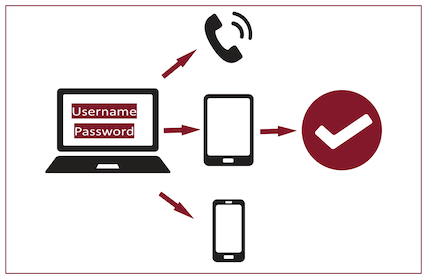
- Enter your username and password to log in to a Fordham system.
- If MFA is required, you will be automatically redirected to an MFA login screen that prompts you to verify your identity using a Duo device authentication method.
- Use your Duo authentication device to verify the login and gain access.
💡Tip: Remember Duo MFA Identity Verification for 30 Days💡
You can opt to have Duo remember you, allowing you to skip MFA when logging in on the same browser and device for the next 30 days. If you are logging in to Fordham systems on a personal trusted device, click the “Yes, this is my device” button that appears after you complete the MFA login.
🚨Important: Only approve MFA requests that you initiated🚨
Only approve Duo MFA prompts that you have initiated by logging in to a Fordham system. DO NOT APPROVE any Duo requests or provide any Duo passcodes not initiated by you. If you receive an unsolicited MFA request, it could indicate that your Fordham account username or password has been compromised - report it to the IT Service Desk immediately by calling 718-817-3999.
-
First-time MFA Enrollment
All Fordham accounts must be enrolled in MFA. You will be prompted to set up MFA the first time you try to log in to a Fordham system with your Fordham credentials. There are multiple device authentication methods you can use to set up MFA (see below), but we strongly recommend using the Duo Mobile push notifications method on your smartphone. Instructions for first-time setup:
- Go to fordham.edu and click Log In in the menu
- Enter your Fordham username and password and click the maroon LOGIN button.
- You will be automatically redirected to a Duo Security setup page. Click Get started.
- Follow the on-screen prompts to add a Duo device.
First-time MFA Enrollment - Duo Mobile (step-by-step tutorial)
-
Add Additional Devices for MFA
Once you are enrolled in MFA, we recommend you add additional devices and authentication methods as backup:
- Go to a Fordham system and log in with your Fordham Username and password
- You may need to use an incognito or private browsing window if you opted to have Duo remember your device for future log-ins
- On the MFA log in screen, click Other options
- Scroll down to the bottom and click Manage devices
- Follow the instructions to verify your identity with an existing device
- Click Add a new device and follow the prompts to add another device
- Go to a Fordham system and log in with your Fordham Username and password
-
Troubleshooting and FAQs
What if I receive an unexpected MFA request?
Suppose you receive a MFA request (login alert on the Duo Mobile app, a phone call from the authentication system, passcode via text message, etc.) that you did not initiate via the login process. Your Fordham username and password may have been compromised. Contact the IT Service Desk immediately by calling 718-817-3999.
Forgotten device: Don’t have your MFA secondary device with you and can’t log in
Contact the IT Service Desk immediately at 718-817-3999. They will verify your identity and provide a temporary passcode. We recommend adding multiple MFA devices for this reason.
Lost device: Your MFA secondary device was lost or stolen
Contact the IT Service Desk immediately at 718-817-3999. They will verify your identity, delete your lost phone from your Duo account to prevent malicious activity, and provide a temporary passcode so you can log in and add an alternative MFA device.
New Phone: How do I set up Duo Mobile on my new phone or tablet?
In order to use Duo Mobile push notifications or passcode on a new device, you must download the Duo Mobile app (iOS/Android) and reactivate it on your new phone:
- Go to fordham.edu and click Log In in the menu
- Enter your Fordham username and password and click the maroon LOGIN button
You will be automatically redirected to the MFA login page
- If you are not directed to complete MFA, you may have opted to have Duo MFA remember your device for future log-ins. In that case, use an incognito or private browsing window and repeat steps 1 and 2
- Click Need Help? in the bottom left corner, then click Manage Devices under "I got a new phone"
- Follow the on-screen prompts to add your new phone.
Can I set up MFA on multiple devices?
Yes! You should set up MFA on multiple devices as a backup if your preferred device is unavailable (i.e., left at home, battery-depleted). During the initial setup or anytime you go to your Duo account, you may add as many phones/devices as you like.
Will MFA prompt me every time I log in to Fordham.edu?
You will always be prompted to log in to MFA unless you have instructed Duo to remember your personal device for future log-ins. After you complete the MFA login, you can click the button that says “Yes, this is my device” so you won’t be prompted to complete MFA again for 30 days when you’re using the same browser and device.
I can't log in with Touch ID or Face ID because I am on a different device - what should I do?
If you have registered with Touch ID and Face ID and try to log in from a different device, Duo will prompt you to enter a bypass code. Contact the IT Service Desk at 718-817-3999 to retrieve the code.
Can I complete MFA if I am travelling internationally?
MFA works anywhere in the world. If you are travelling without a telephone signal or data plan, you can use the Duo Mobile app passcode. Just ensure your device is already set up with the Duo Mobile app before you travel. If you use the app, tap the key icon in the “Fordham University” bar to generate the required six-digit passcode without a telephone signal or data plan. You can do this anywhere in the world.
What information is shared with Duo Security?
Duo only stores your Fordham username, email address, and authentication device information, such as your phone number. Duo does not have access to your Fordham password.
Why does Duo Mobile need access to my device’s camera?
Duo Mobile needs one-time access to your device’s camera. Duo Mobile only accesses your camera when it scans a QR code during activation. This step is only completed during your initial enrollment or when you elect to activate a new smartphone. You may disable Duo’s camera access in your phone’s settings; enable it only if you need it again.
Device Authentication Methods
-
Duo Mobile App
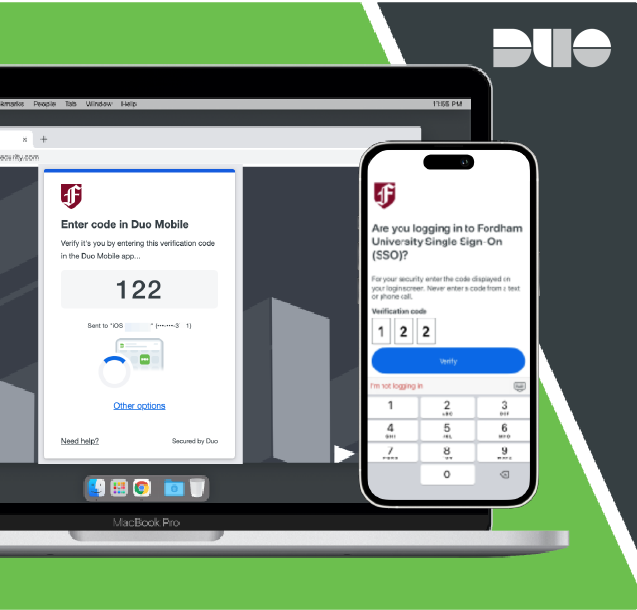
When you try to log in, you will have to verify your identity using the Duo Mobile app (iOS/Android) on your smartphone or tablet.
- If you are logging in to a Fordham system on your smartphone/tablet that has the Duo Mobile app:
You will be directed to open Duo Mobile and "approve" or "deny" the authentication request. - If you are logging in to a Fordham system from another device: You will receive a push notification from the Duo Mobile app on your smartphone or tablet. The MFA login screen will also display a 3-digit verification code. Enter the code from the MFA login screen into the Duo Mobile app to verify your login attempt.
We highly recommend the Duo Mobile Push notification option; It is the quickest, easiest, and most secure way to use MFA when logging into a Fordham system.
Compatible device(s) Device Requirement(s) - Smartphones
- Tablets
- If you are logging in to a Fordham system on your smartphone/tablet that has the Duo Mobile app:
-
Text Message Passcode
When you try to log in, an SMS text message containing a 6-digit passcode is sent to your registered mobile device. Enter the passcode into the MFA login screen to verify your login attempt.
Compatible device(s) Device Requirement(s) - Cell phone
- SMS capability
-
Duo Mobile Passcode
Log in using a passcode generated by the Duo Mobile app installed and activated on your Android or iOS device. When you try to log in, open the Duo Mobile app and click on the Fordham University account to view a six-digit passcode. Enter that passcode into the MFA log in screen to verify your identity.
Compatible device(s) Device Requirement(s) - Smartphones
- Tablets
-
Phone Call
When you try to log in, the MFA login screen will display a number to press and Duo will call your phone. Answer the phone, listen to the message, and press the provided number on your phone keypad to verify your identity.
The phone call message will also provide you with a different number to press to report a fraudulent call regarding your login. The phone call will also provide you with a number to press if you did NOT initiate the login attempt.
These numbers change often, so please pay attention and press the correct number.
Compatible Device(s) Device Requirement(s) - Cell phones
- Landlines
- Telephone signal
-
Face ID or Touch ID
When you try to log in, you will be asked to verify your identity by scanning your face or fingerprint on your device.
Note: You can only use Touch ID or Face ID to complete MFA on the device it is set up on. For example, if you log in to a Fordham system on your computer and set up touch ID on your computer, you will only be able to complete MFA on that same computer.
- If you try to complete MFA from a different device than the one that has Face ID/Touch ID, Duo will prompt you to enter a bypass code. Contact the IT Service Desk at 718-817-3999 to retrieve the bypass code and gain access to your account.
- To avoid this and ensure you can complete MFA with ease, make sure you have set up multiple MFA methods:
Compatible Device(s) Device Requirement(s) - Smartphones
- Tablets
- Computers
- Face identification or fingerprint identification capabilities
-
Hardware Token
A hardware token is a small battery-powered device you can use to complete MFA. When logging, press a button on the token to generate a 6-digit passcode. Enter that passcode into the MFA log in screen and click "Verify." The token can be attached to your keychain and does not require internet access.
This option is only available by request, and is not recommended for most people.
Request a Security Key Fob
To request a hardware token, call the IT Service Desk or use the Tech Help Service Portal (fordham.edu portal > Tech Help page > Service Catalog > Information Security > MFA Token Request). All requests for tokens must be approved by the Associate Vice President’s Information Security and Assurance. Hardware tokens must be returned when you leave the University or no longer use this method of authentication. A $20 fee will be charged to replace a lost token.
Compatible device(s) - Hardware token (provided by IT)