Deleting Sections
Delete a page/Take Page Offline | Delete / Take a a section (content type) offline
Do Not Trash an Item in Terminalfour if You Are Unsure of Its Usage!
Prevent 404s (broken links): Before you delete content or a page, follow these steps:
Temporarily Delete or Take a Page Offline
- When viewing the Site Structure, navigate to the Page you would like to delete
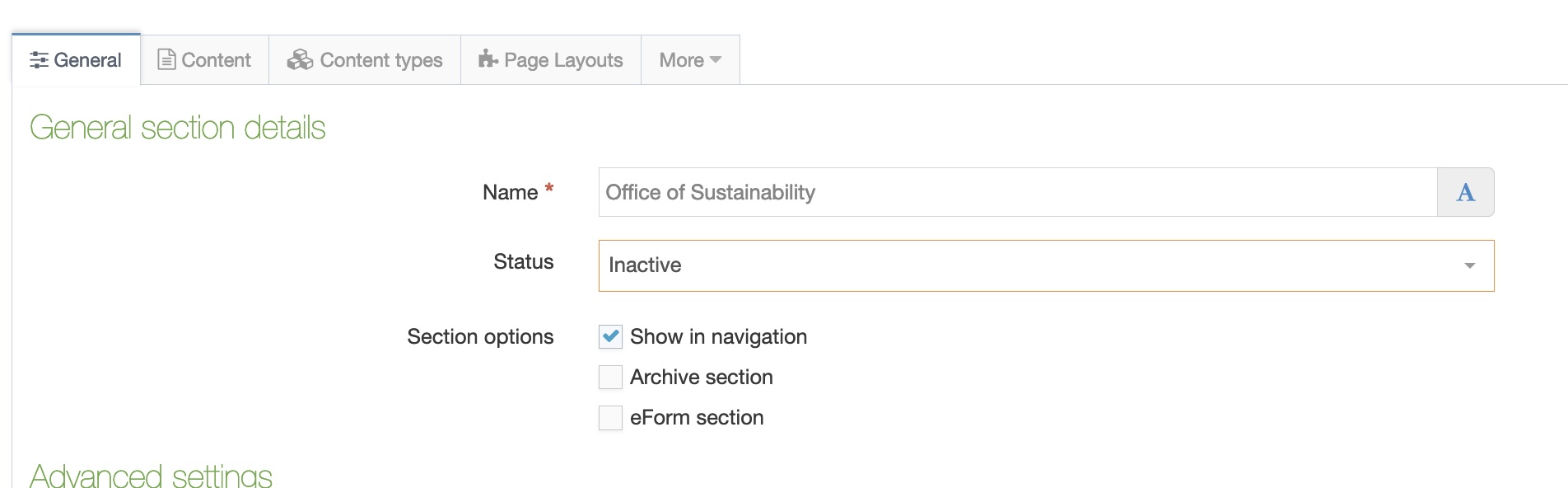
- Click on the name of the page (General Tab)
- Select ‘Inactive’ from dropdown and click ‘Save’.
- On the next publish, this content will be taken offline.
Permanently Delete or Take a Pages and Content Offline
- When viewing the Site Structure, navigate to the Page with the designated content type
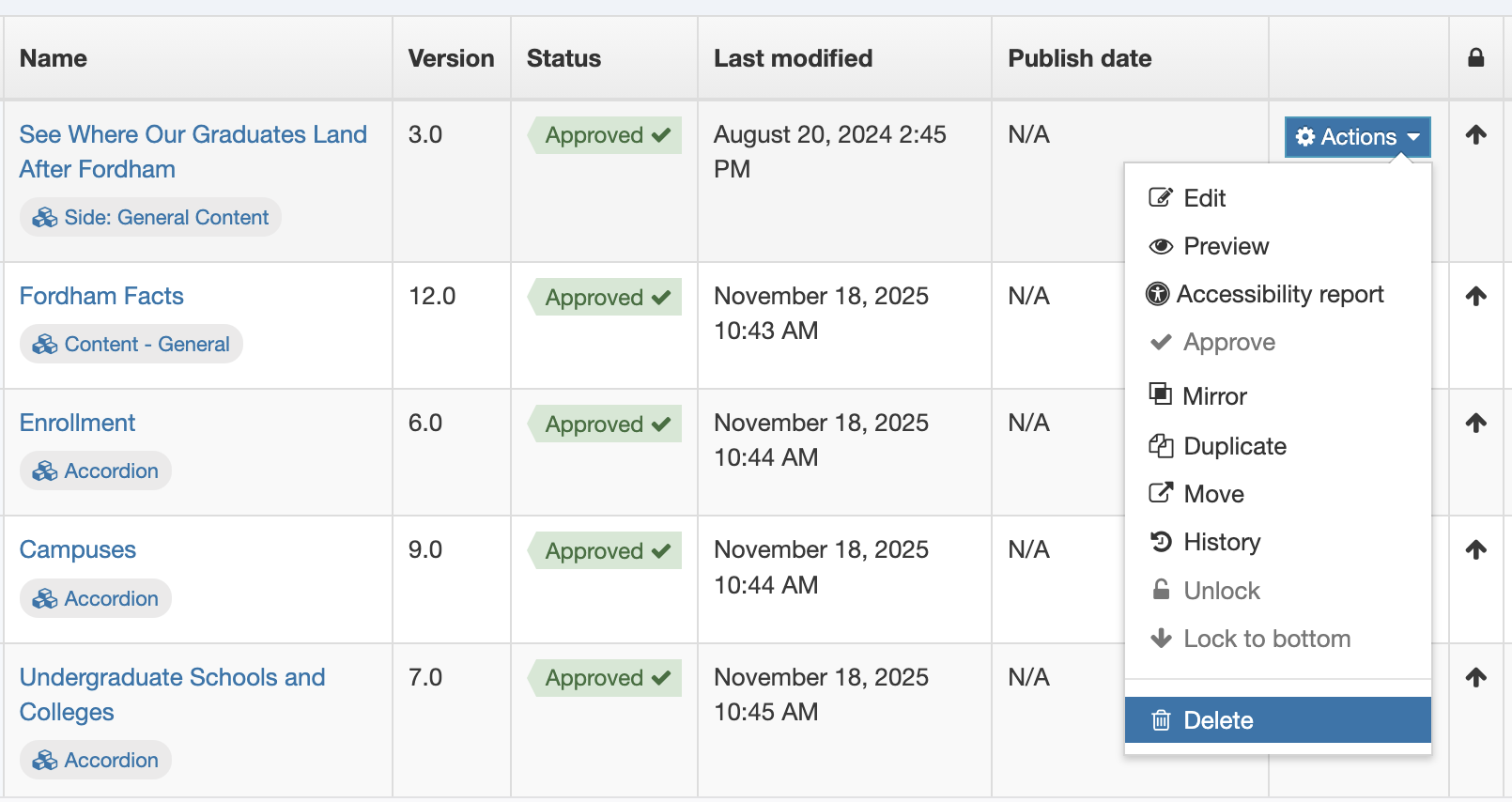
- Click the name of the Page and then the "Content" tab
- For each content type marked for permanent deletion, click the blue "Actions" but then select "Delete"
- Click the red ‘Delete Section’ button at the bottom of the page
- If the page is linked in other areas, a prompt will come up listing the linked pages.
- If the listed pages are outside of your area, you will not have access to make edits.
- Instead, cancel out of this section/do not delete the page. Make a note and contact the Web Team. We will assist with taking this content offline and putting a redirect in place.
- If a prompt does not pop up, proceed with deleting this content.
- You should then click the ‘Actions’ button, select ‘Move’ and move the content type to the ‘Trash-Delete From System’ folder.
The "Purge" - The Web Team will start conducting monthly clean up sessions and purge/permanently delete content in trash folders that is no longer needed.
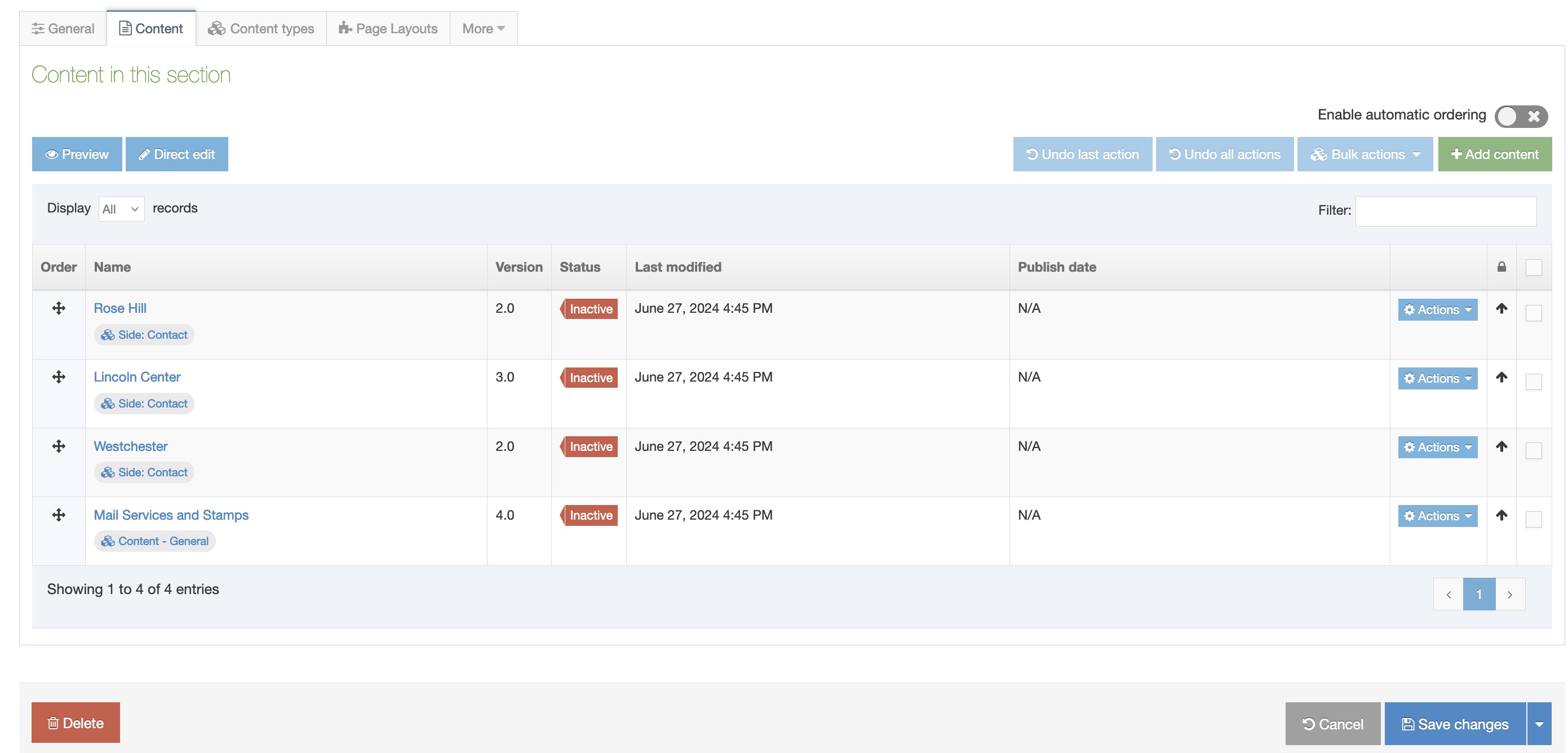
Move Pages/Content to "DELETE" Folder for Permanent Deletion
- For assistance with permanently deleting pages or individual content types, please contact the [email protected].