Search for Pages
If you know the exact name of the page you need, the Filter Sections tool at the top of the site structure is your fastest route.
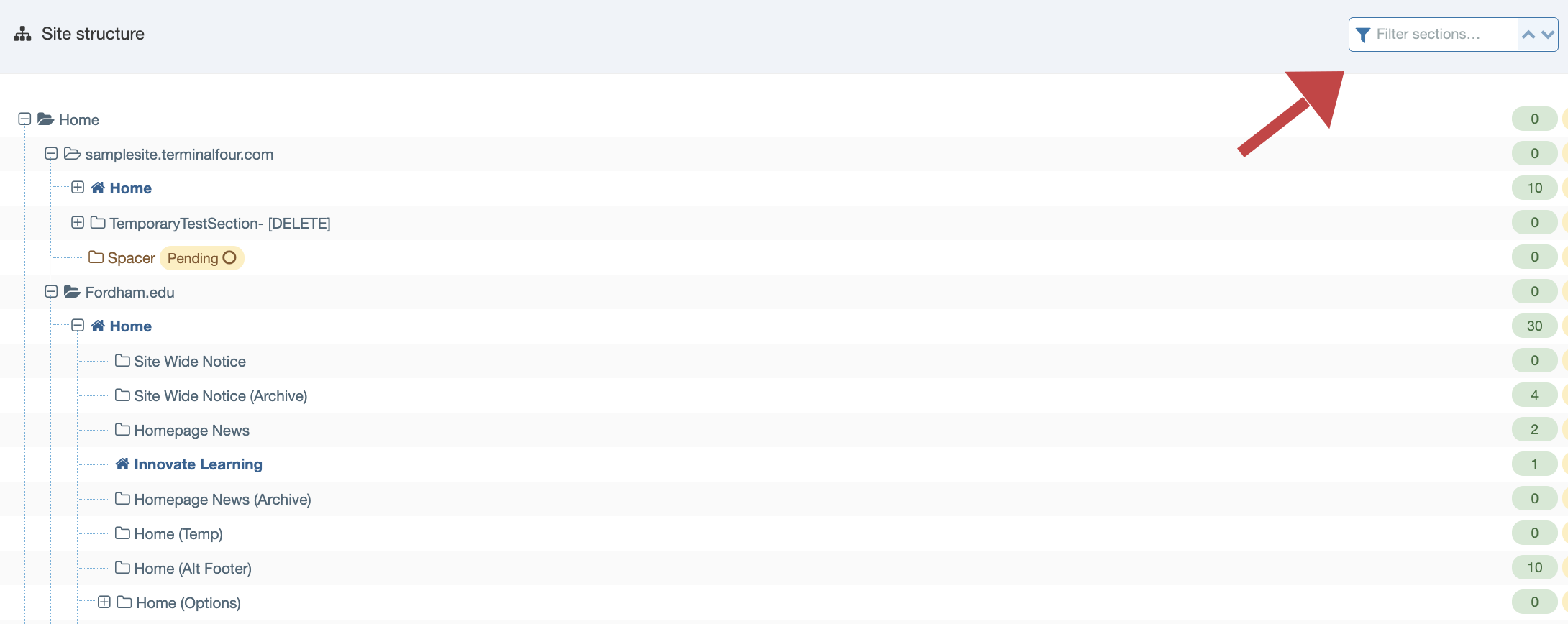
Otherwise, follow these steps to navigate manually:
1. Use Breadcrumbs as a Map
Before opening Terminalfour, look at the live webpage you want to edit. Use the breadcrumbs (e.g., Home > About > Fordham’s History) to identify exactly where that page sits within the site hierarchy.
2. Drill Down the Site Structure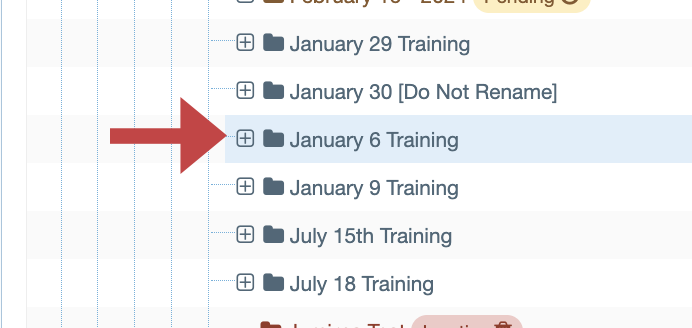
- Navigate: Find the parent section where the page lives.
- Expand: Click the plus sign (+) to the left of a section title to reveal its child pages.
- Repeat: Continue drilling down using the plus sign until you locate your specific page.
3. Access the Content
Once you find the page, click the page title itself. This will take you into the Content Tab, where you can begin editing.
Note: Be careful when clicking the plus sign (+). If you click and drag by mistake, you might accidentally move an entire section. If this happens, a pop-up window will appear asking to confirm a move, select Cancel to avoid breaking the site navigation.